You have likely seen square grid patterns when looking at restaurant menus or checking information at public facilities. This is a QR Code. QR code scanning is not just about taking a picture; it is the simplest gateway connecting the digital world to reality. In the past, you needed to install a separate recognition application, but today, most smartphones provide this as a built-in feature, allowing anyone to pull up information in a second. This technology maximizes the efficiency of information delivery and drastically reduces the hassle of manually typing in complex URLs.
Scanning QR Codes with Your Smartphone's Built-in Camera
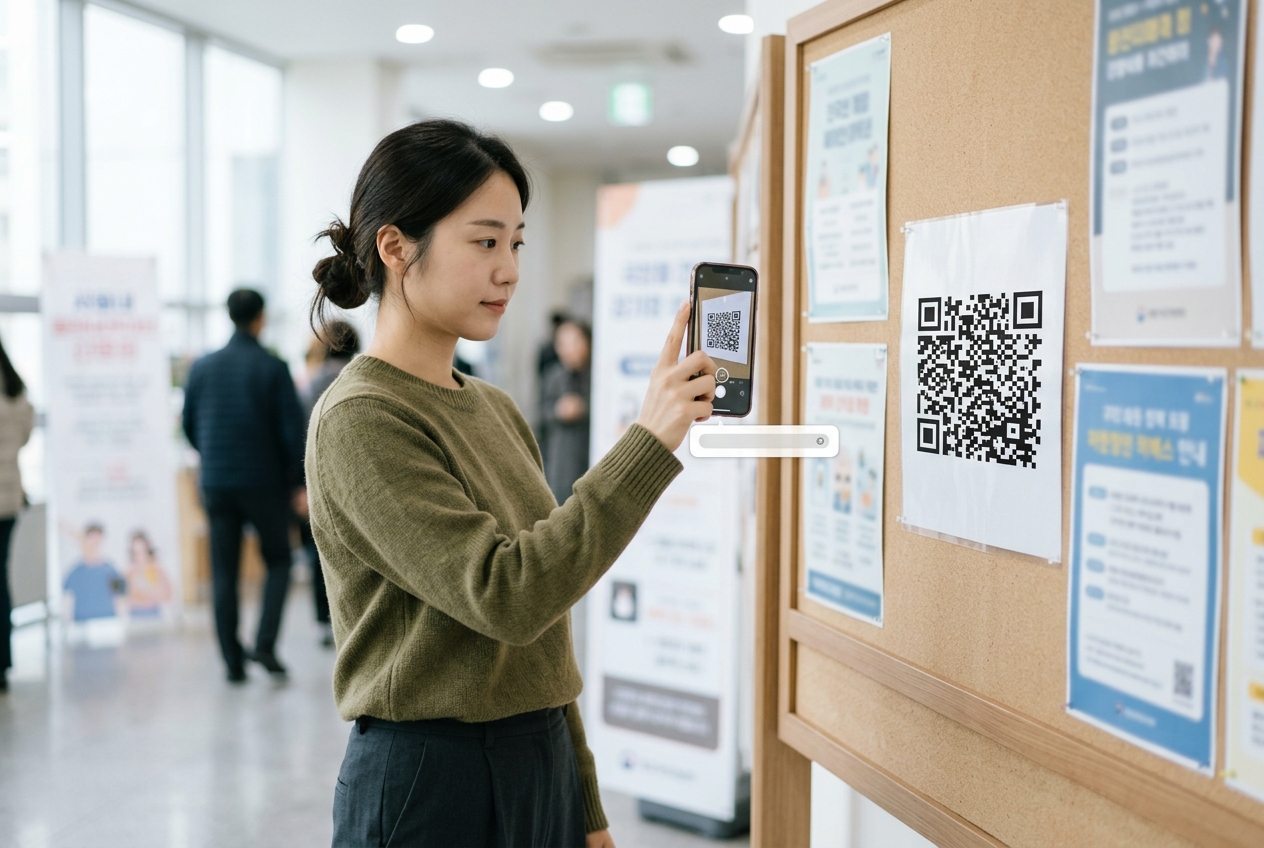
The most popular and convenient method is to use the built-in camera app on your smartphone. On both iPhone and Android, you simply need to open the camera and point it at the QR code without any special settings. Once the camera recognizes the code, a small link address will appear on the screen; tapping it will take you directly to the website or information page.
If there is no reaction when you point the camera, check if the 'QR Code Scan' feature is enabled in your settings menu. For Android devices, this option may exist within camera settings, or it can be recognized via Bixby Vision or Google Lens. On iPhones, it has been built into the camera app by default since iOS 11, so no extra configuration is needed. Keeping your device software updated is recommended, as recognition speed and accuracy improve with newer operating systems. If you are using an older device, you can add the QR scan function to your Control Center for faster access.
How to Improve Camera Recognition Rate
Sometimes your smartphone camera may fail to read a QR code properly. In such cases, a few simple steps can solve the problem. First, check the lighting. If the surroundings are too dark or, conversely, if light is reflecting directly off the code making it appear white, recognition errors will occur. Second, wipe your camera lens. Fingerprints or smudges hinder precise recognition. Third, adjust the distance. If you are too close, it won't focus, and if you are too far, it is hard to identify the code. Align the code in the center of the screen and wait a moment for a response. If the paper with the printed code is crumpled, flattening it out as much as possible will significantly improve recognition. Also, if you are using a third-party camera app instead of the default one, QR recognition features might be limited, so be sure to use the native camera app.
Comparison of Frequently Used QR Code Scanning Features
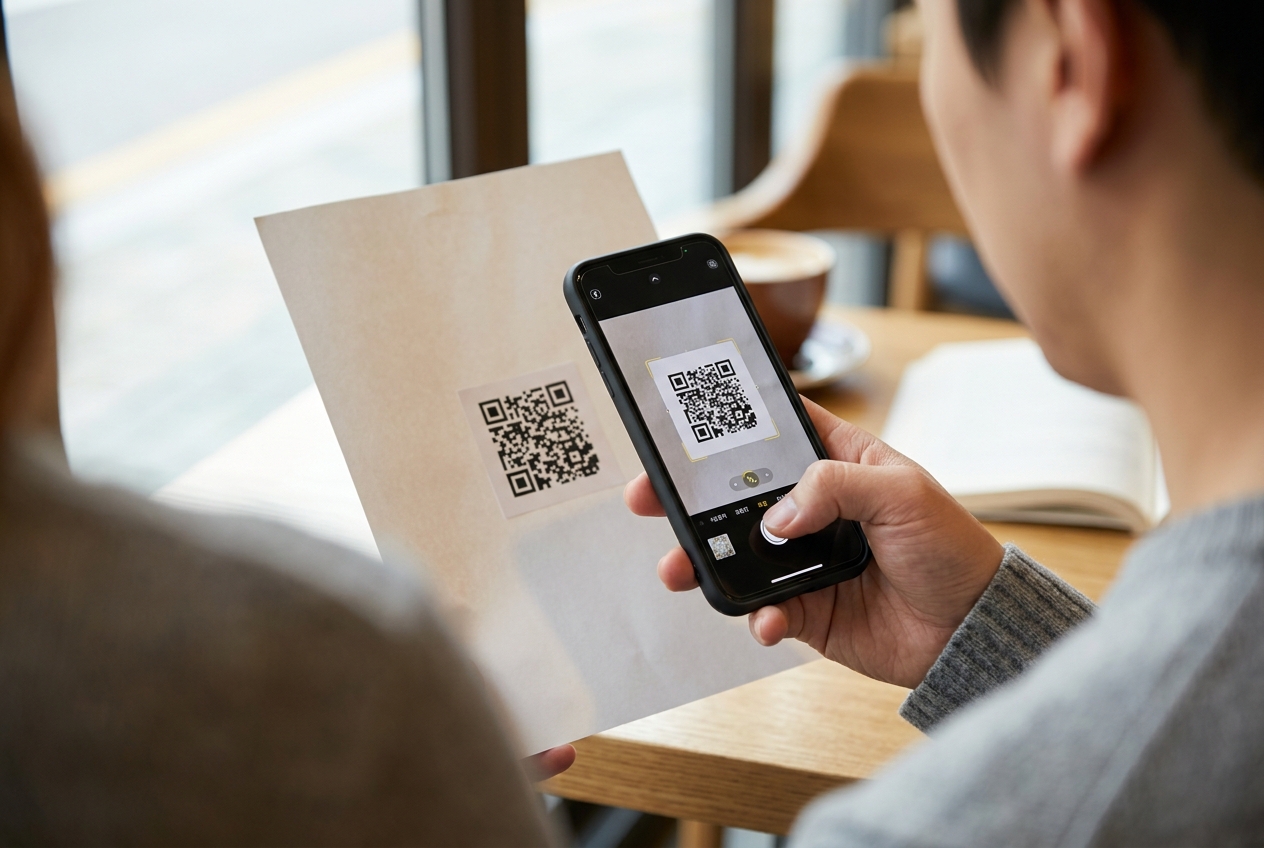
Many people use QR codes in various ways beyond just the default camera. Let's compare which method is more efficient depending on the situation.
| Category | Default Camera | Messenger Apps (e.g., KakaoTalk) | Dedicated Scanner Apps |
|---|---|---|---|
| Accessibility | Very High | High | Moderate |
| Speed | Very Fast | Moderate | Fast |
| Additional Features | Simple Link | Add Friend/Payment | History Management/Storage |
As shown in the table, the default camera is the fastest and most convenient for simply obtaining website information. However, scanners within messenger apps like KakaoTalk are more powerful when linked to internal services, such as adding friends or sending money. Choosing the right tool for your needs is the start of a smart digital life. For example, using a dedicated payment app is safer for offline payments, while the default camera is sufficient for scanning to participate in a specific event.
Dedicated scanner apps were common in the past, but today they are mainly used in specific work environments where you need to review past scan history or manage a large volume of codes. For the average user, there is no need to install extra apps. In fact, excessive app installation can occupy storage space and generate unnecessary notifications, so it is better to get into the habit of utilizing built-in features. Also, since apps often request security permissions upon installation, using built-in features is safer for personal data protection unless absolutely necessary.
Security Precautions When Scanning QR Codes
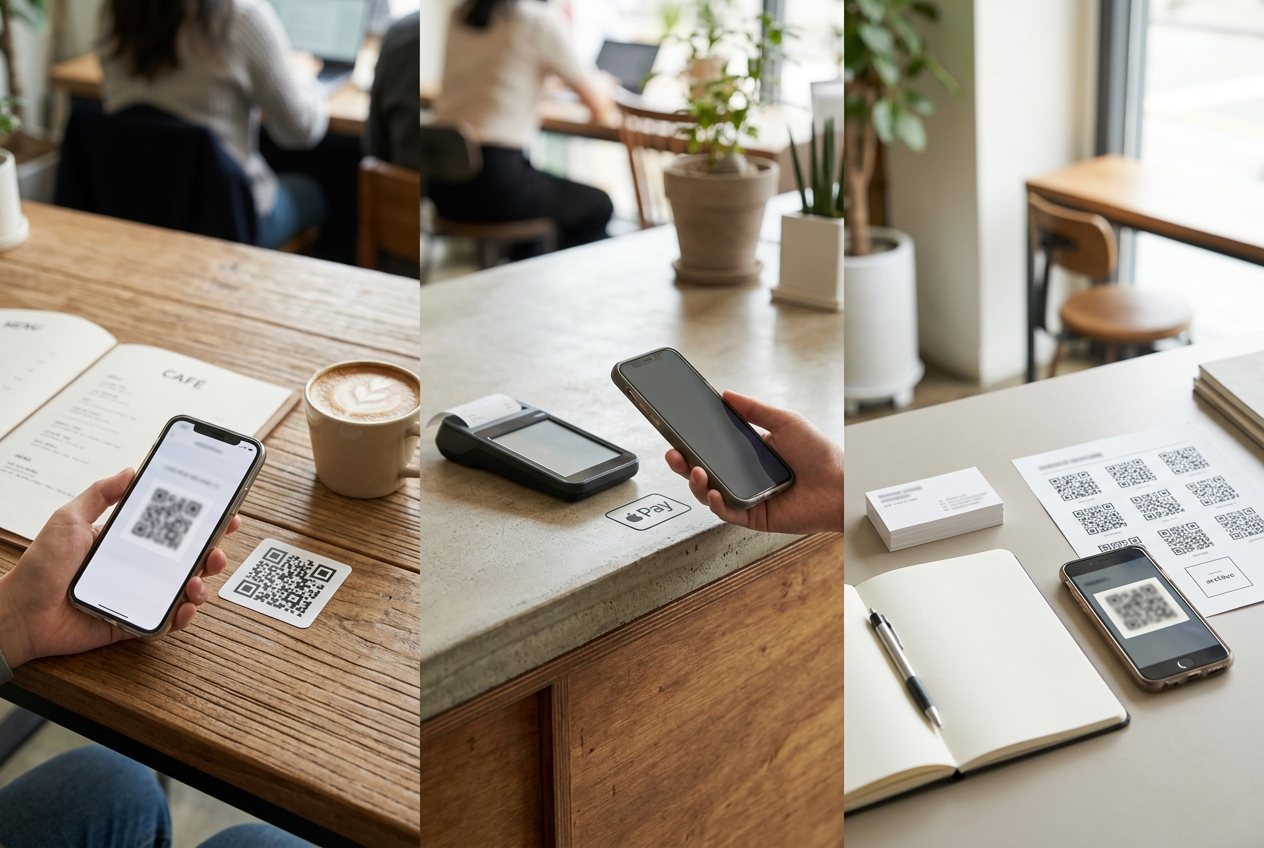
QR codes are convenient, but there are invisible risks. This is due to a fraudulent technique called 'Quishing' (QR + Phishing). There are cases where malicious individuals place fake stickers over QR codes in public places or lure users to phishing sites. To prevent this, you must follow several security rules.
First, never scan QR codes from unknown sources. You should be suspicious of codes on street flyers or in untrustworthy locations. Second, carefully examine the URL address after scanning. It is important to get into the habit of checking if it is the correct official website address you intended to visit. Third, be even more cautious if the page requires payment or personal information. Fourth, keep your smartphone's security updated to protect your device from malware. Fifth, avoid accessing payment pages using public Wi-Fi in public places.
Many people overlook this, but if a linked page prompts you to download something or install an app, you should close the window immediately. Remember that security is a matter of habits before technology. Especially recently, it is essential to verify the source of QR codes received via mobile messengers. Even if a code comes from an acquaintance, it is safer to verify it directly if the situation is unexpected. Also, as a rule, do not scan if there are stickers added around the code or signs of tampering. Always keep in mind that security incidents often start from minor negligence.
Various Situations for Using QR Codes in Daily Life and Future Prospects
QR codes have now become a part of life, going beyond simple information delivery. They are most commonly used in contactless ordering systems at restaurants or parking payment systems. There are also increasing cases of printing QR codes on business cards to share contact information. In exhibitions or museums, they are used to connect to audio guides. As digital transformation accelerates, QR codes have become the standard in public service areas, such as issuing government documents and electronic access logs.
As such, QR codes have become the standard for information delivery. Knowing how to scan a QR code is now a benchmark for digital literacy. It may feel awkward at first, but anyone can easily learn it by repeating the action of opening the smartphone camera and pointing it at the target once or twice. It is a particularly useful technology for the senior generation, so if family members help out, it will be a great help in reducing the digital divide. In the future, it is expected to evolve into a way to provide more immersive information by combining with Augmented Reality (AR) technology. It will act as a bridge connecting not just flat links, but 3D models or real-time video information.
The last point I want to emphasize is 'check before connecting.' No matter how convenient a feature is, it can be poisonous if safety is not guaranteed. Take a moment to check if the location is trustworthy and if the code's appearance is damaged or shows signs of tampering. Find any QR code around you right now and point your camera at it. The digital world will feel much closer. If used correctly, QR codes will become the most powerful and efficient tool connecting the offline and online worlds. Start using QR codes smartly in your daily life starting today.
Frequently Asked Questions
Do I need to install a separate app for QR code scanning?
No, most modern smartphones have a QR code recognition feature built into the default camera app, so there is no need to install a separate app.
I scanned with the camera, but there is no reaction.
Try wiping the camera lens, ensuring proper lighting, and trying again. Also, check if the QR code scanning feature is enabled in your smartphone settings.
Can my personal information be leaked if I scan a QR code?
Scanning itself does not leak information, but it can be dangerous if you enter personal information or install malicious apps on the site linked after scanning. Be cautious of codes from unknown sources.
Can I scan QR codes with KakaoTalk?
Yes, you can easily recognize QR codes for adding friends, sending money, or KakaoPay payments using the scan function in the 'More' tab within KakaoTalk.
I want to check my QR code scan history.
The default camera app often does not save scan history separately. If you need to manage your history, use a dedicated scanner app or check the sites you previously visited through your browser's history.